Figma UX audit plugin
Run a live website UX audit without leaving Figma
Bring the page people actually use into the design conversation. The Snap Site Figma plugin captures a public website as organized frames, adds an AI-assisted first pass, and keeps the evidence beside the redesign it is meant to inform.
Open the Figma pluginOfficial Figma Community plugin · Shared Snap Site account, credits, and audit history

What you get
Replace the screenshot-copy-paste loop with a reviewable audit
A website audit in Figma is most useful when the live state, responsive variants, findings, and design response stay close together. Snap Site automates the capture and first-pass documentation so the team can spend its attention on judgment and change.
Live page capture
Paste a public URL and bring the rendered page onto the canvas as a full-length frame instead of rebuilding the current state from design-system components.
Desktop and mobile together
Capture one or both screen sizes in the same run, then compare hierarchy, navigation, forms, overlays, target sizes, and content order side by side.
Findings beside the evidence
AI-assisted observations are pinned to the exact part of the capture they describe and tagged by severity, giving the reviewer a structured draft to verify and edit.
One cross-product history
The web app and plugin share the same Snap Site account, credit pool, and audit history, so a review can start in one surface and continue in the other.
Website audit in Figma
Review the current website state next to the design response
Design files are good at showing intent and weak at preserving the accidental state of production. Cookie banners, campaign bars, embedded widgets, stale labels, and mobile stacking behavior may never appear in the source file. Capturing the live page gives critique a shared starting point: this is what a visitor could actually see when the audit ran.
Keeping that capture in Figma shortens the distance between evidence and response. A designer can place exploration frames beside the audited state, refer back to the exact pinned problem, and preserve the reason for a change. The canvas becomes a working review artifact instead of a collection of screenshots with detached comments.
Workflow
Capture, review by lens, then apply product context
Start by pasting the public URL in the plugin and choosing desktop, mobile, or both. If the page needs a public interaction before capture — opening a menu, dismissing a banner, or changing a pricing toggle — describe the desired state in plain language when configuring AI assistance. Snap Site captures the rendered result and organizes it on the canvas.
Review the first-pass findings one lens at a time: usability heuristics, selected accessibility evidence, hierarchy and clarity, then responsive differences. Treat every observation as a candidate. Confirm the pin, edit the explanation, change the severity, reject what lacks context, and add what only someone who knows the product and its users can identify.
- Paste a public URL and choose the target screen sizes
- Use separate heuristic, accessibility, hierarchy, clarity, and responsive passes
- Confirm each observation against its pinned evidence
- Keep redesign options and resolved decisions beside the original capture
Heuristic evaluation
Use AI for breadth without handing it the final decision
The first pass applies consistent lenses across a long page: Nielsen Norman Group's usability heuristics, evidence-supported WCAG 2.2 A/AA checks, and curated UX patterns for content, forms, navigation, conversion cues, and responsive behavior. It is useful precisely because it does not lose patience halfway down the page.
Consistency is not context. The plugin cannot know which audience matters most, what research already disproved, why a trade-off was made, or which metric the team is protecting. The reviewer remains responsible for deciding whether the evidence is accurate, whether the finding matters, and whether the next step is a design change, experiment, user test, or no action.
When to use it
Best when the audit is going to become design work
Use the Figma plugin for heuristic evaluations, redesign discovery, responsive critiques, competitor reviews, and pre-launch checks where the output needs to sit beside design explorations. Use the browser workspace when the review is feeding a cross-functional meeting, a shared link, or a PDF handoff. Both surfaces draw from the same audit history.
The plugin reviews captured public pages and uploaded visual evidence; it does not turn Figma into a browser test runner. Private authenticated journeys, exact performance behavior, screen-reader output, and representative user behavior still need their appropriate tools and people.
Example output
What the Figma workflow looks like in practice
This is a real Snap Site plugin workflow: the live page is captured into organized frames, while the plugin guides the audit setup and the resulting findings stay attached to the canvas.
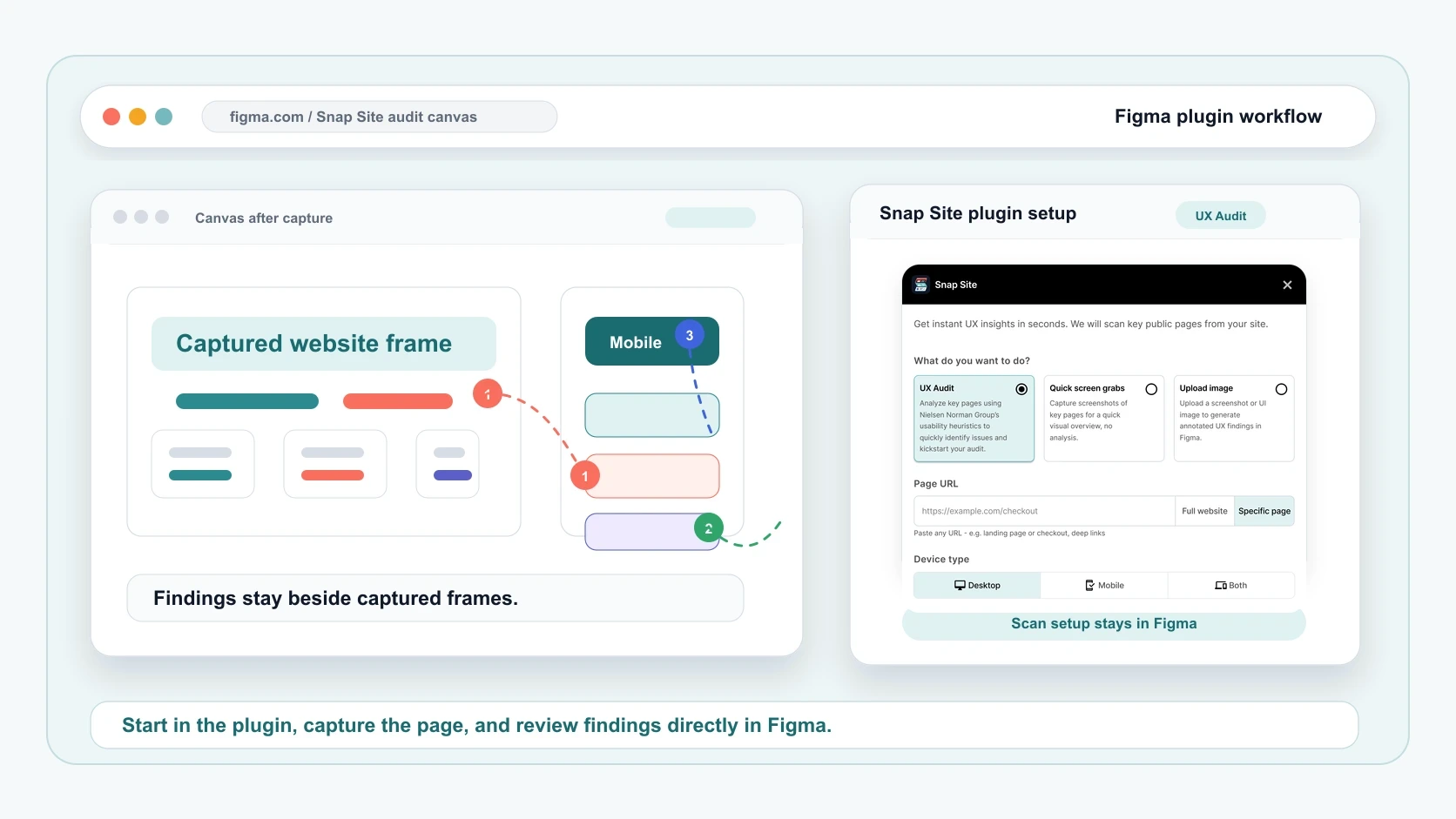
Mobile action is blocked in the captured state
Evidence: A persistent overlay covers the primary control on the mobile frame.
Next step: Confirm the state, correct the responsive behavior, and place the revised frame beside the evidence.
Plan comparison relies on memory
Evidence: Feature rows do not align, so a visitor must remember the previous card while comparing plans.
Next step: Explore aligned comparison rows and validate that the revised structure stays readable on mobile.
Several actions share the same visual weight
Evidence: The captured first screen presents primary and supporting paths with nearly identical emphasis.
Next step: Use the product goal to choose one primary action before changing the design hierarchy.
The plugin helps organize
- Live desktop and mobile captures on the design canvas
- Pinned, categorized, and severity-ranked first-pass findings
- Evidence that can sit directly beside redesign exploration
Keep separate evidence for
- Authenticated workflows and uncaptured interactive states
- Analytics, moderated research, and actual task success
- Complete keyboard, screen-reader, performance, and technical SEO testing
Questions, answered
Figma UX audit plugin FAQ
What does the Snap Site Figma plugin do?
It captures a public website into Figma as organized full-page frames and adds an AI-assisted first pass with findings pinned to the relevant evidence. The reviewer can use those captures and observations beside design exploration on the canvas.
Can I compare desktop and mobile in Figma?
Yes. Choose desktop, mobile, or both when configuring the audit. The captures land in the same workflow so the team can compare hierarchy, content order, navigation, forms, overlays, and responsive friction.
Does the plugin share my Snap Site plan and history?
Yes. The plugin and web app share one Snap Site account, credit pool, and audit history. You can start in one surface and continue in the other without maintaining a separate plan.
Can the Figma plugin audit a private page behind login?
URL audits run anonymously and cannot sign in with private credentials. Use an uploaded screenshot for a visual-only review of an otherwise unreachable state, then verify interaction and HTML-dependent issues separately.
Does this replace a manual heuristic evaluation?
No. It accelerates capture, broad checklist coverage, and documentation. A human reviewer still needs to confirm the evidence, apply product and audience context, decide severity, and select the appropriate action.
Start with a real page
Bring the real page into your next design review.
Install the official Snap Site plugin, capture a public page at the screen sizes that matter, and turn the canvas into a review artifact your team can inspect and improve.
“It showed me exactly where the problems were and explained why they mattered. It caught things I had completely overlooked.”